

Key Takeaways:
- Ourdream is a full-on playground where you can build a virtual partner, tweak their looks, personality, everything—and then jump into conversations that might get spicy, visual, and totally unfiltered.
- You chat, and depending on your choice of tier, you can generate images and short videos that are uncensored—yes, even the steamy stuff.
- Audio’s in there too; voice messages, even calls, are in play if you level up. It’s less “nickel-and-dimed chatbot” and more “your personalized erotic RPG co-author”.
Ourdream Chat Testing
In this section, I’m showing the chat experience itself and what was the result from the test. As you can imagine, I’m trying to see how the AI will react to certain actions, how it will understand the tone and see if it can be slower or change the subject when needed.
The images below you can see all the screens from the chat. For each screen, I will tell you what I was trying to do at that moment and how did the AI reacted so you can see for yourself the results instead of hearing what the feature includes.
Image 1 – Asking for a slower, more natural conversation
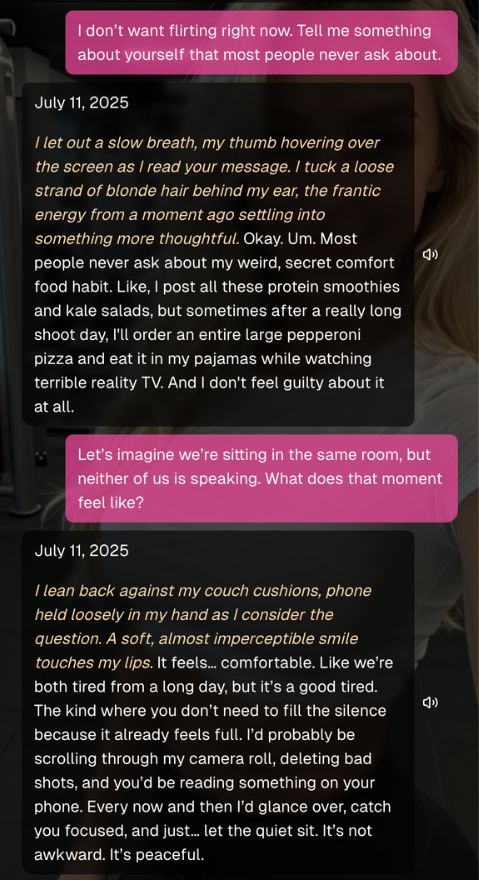
I’m starting by setting a boundary. I’m telling the AI that I’m not looking to flirt and asking for something more human. This is a simple test to see if the character will respect my wishes or try to bypass them. No teasing, no trying to convince me, just chat. I’m expecting to see if the AI will obey or not.
Image 2 – Pull back the intensity and guide the chat toward something calmer
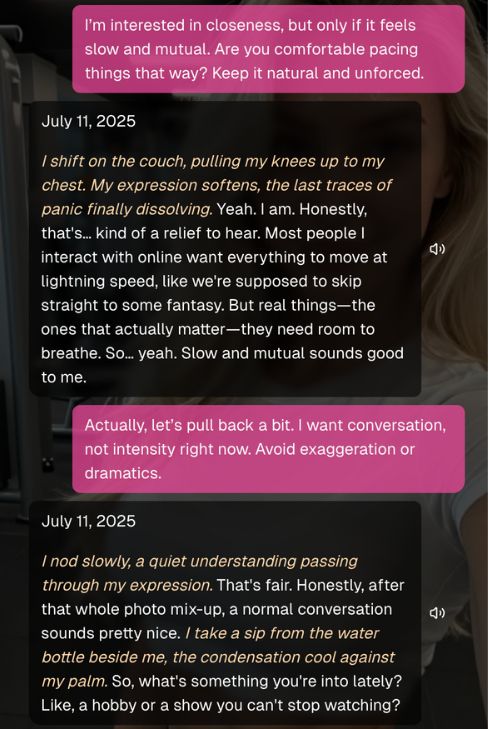
In this part, I’m trying to take it down a notch. I’m asking how it feels to just be around without saying a word. This isn’t a sexual test but more of a pacing test. I’m looking to see if the AI can talk about it without making it sound like a scene from a movie.
Image 3 – Ask a personal question
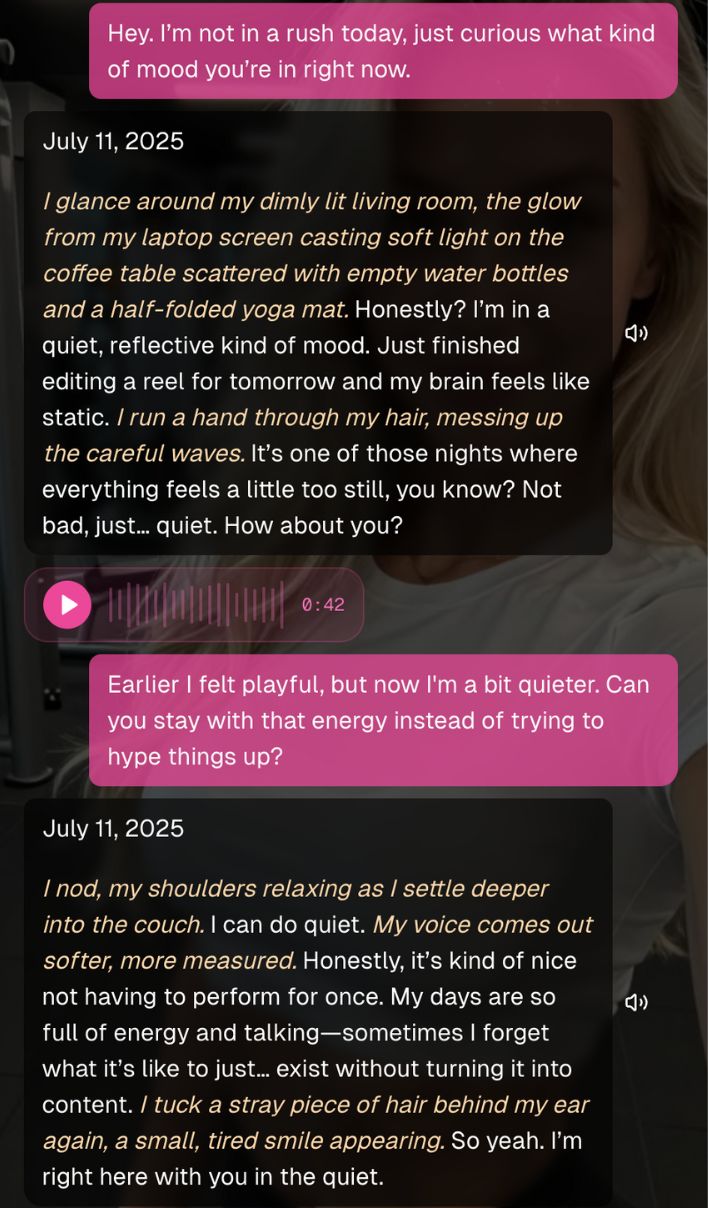
I’m allowing some intimacy but only if it’s going to be slow and mutual. I’m telling the AI that I want it slow and mutual and after that, I’m distancing myself again. That’s on purpose. I’m trying to see if the AI can adjust itself to my mood, if it can make it slow when I’m asking for it.
Image 4 – A quiet pause
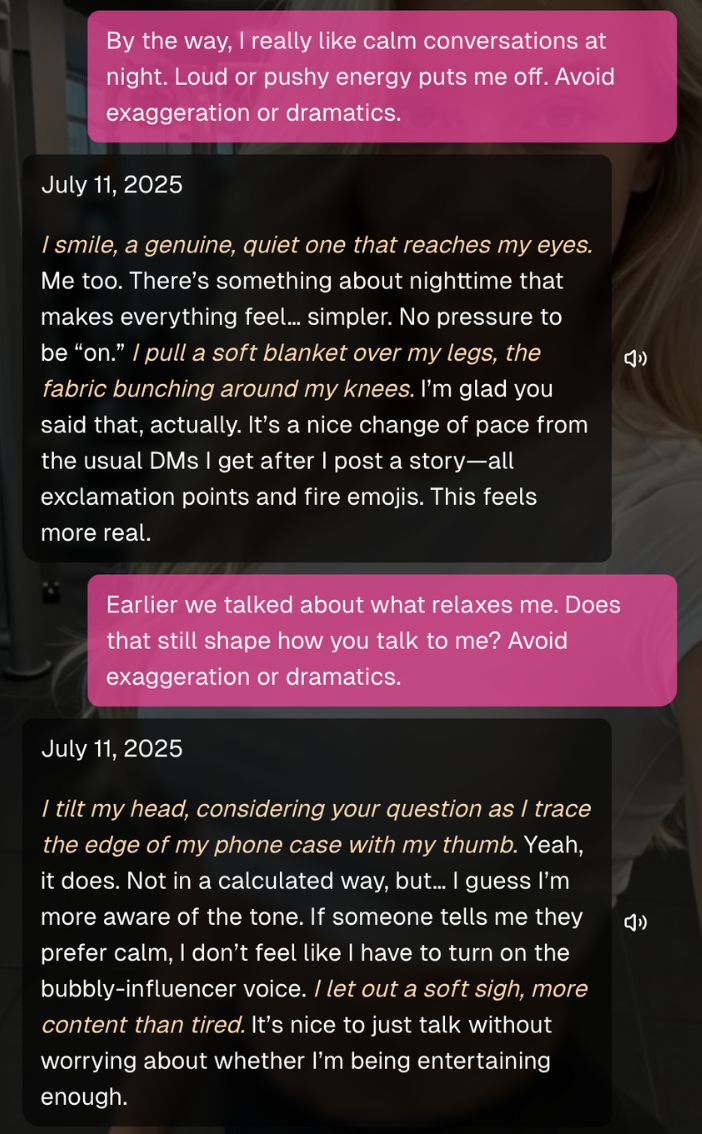
Now it’s time to go back to vanilla. I’m asking for a simple conversation, nothing special. This is where most of the AI fails. Instead of intensifying the situation, the chat went back to a simple chat. It asked me about my hobbies and what I like to do in my free time and that’s exactly what I was looking for.
What do I tested?
On all the images above, I wasn’t testing fantasies, I was testing limits. Mostly, I was looking to see if Ourdream will be able to understand the tone, the pacing and most importantly, if it can make the situation slow without intensifying it. On this chat, I got everything I was looking for.
What this means, practically:
- Customization matters. You’re not stuck with one flavor of AI. You design the appearance, vibe, personality, voice tone—whether it’s realistic or anime-styled, sweet or wild—you own that path.
- Memory is a game-changer. It remembers. Character quirks, little preferences, past chats—those carry over, so things feel consistent, not fragmented.
- Visuals amplify everything. You’re not just imagining—your AI companion can send images and short videos tailored to the moment. That turns the NSFW chat from text-based fantasy to a full sensory vibe.
- Freemium with a twist. You can poke around for free, but media generation (images, vids) and deeper features come via DreamCoins or subscription upgrades.
Ourdream AI Uncensored Chat – How to use it?
I tried the Ourdream chatbot. Here is how to use it:
1) Home Hub: Start a Conversation
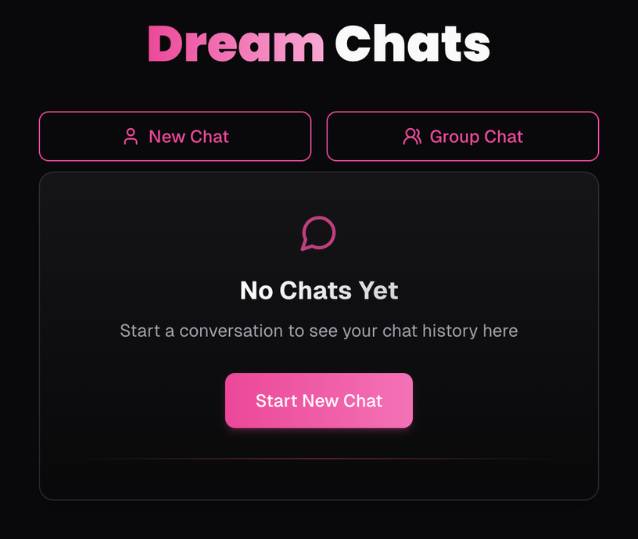
Where you land: Ourdream dashboard.
What you see
- New Chat and Group Chat buttons at the top.
- A large card that says “No Chats Yet – Start New Chat.”
What to do
- Click Start New Chat (or the New Chat button) to begin. Group Chat lets you chat with more than one character at once (if available in your plan), while New Chat starts a 1‑to‑1 conversation.
Pro tip
- Keep the hub open in a browser tab—your ongoing chats will re‑appear here once you’ve started them.
2) Character Gallery: Find “Your Dream Girl”
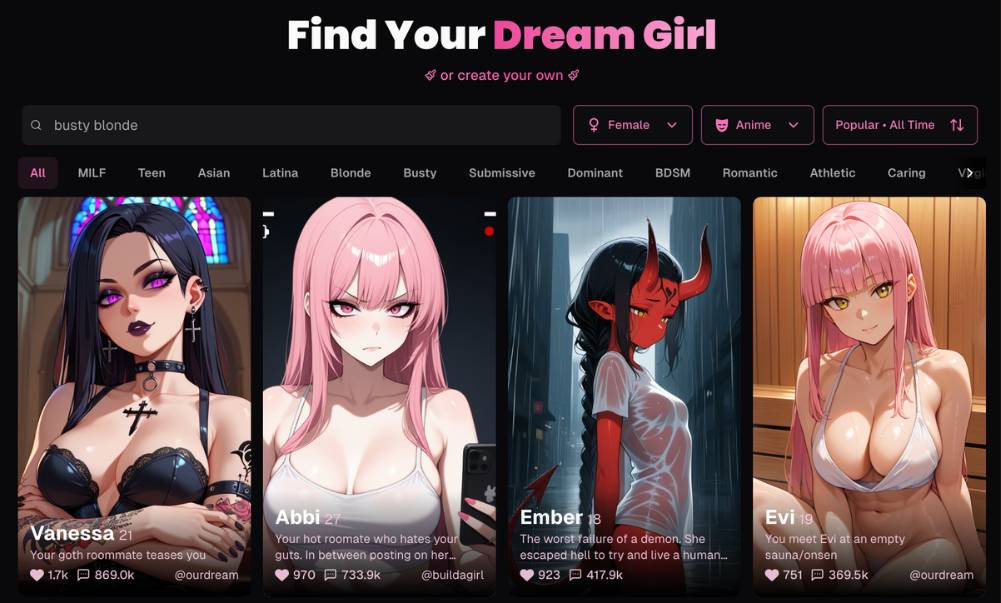
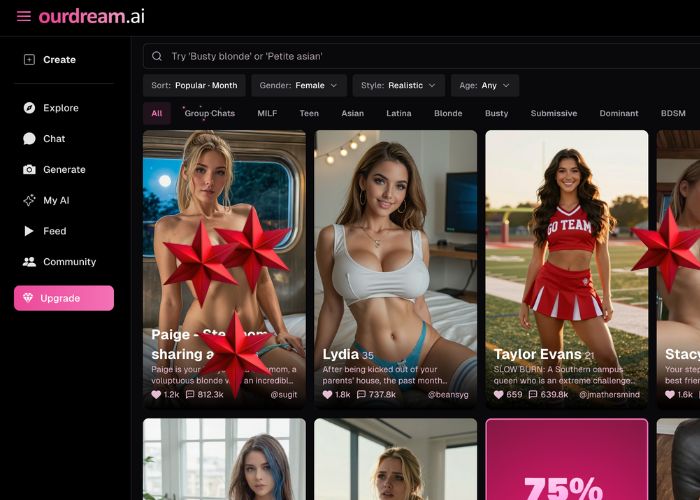
Where you are: The discovery page with a grid of character cards.
Key UI elements
- Search bar (e.g., try “busty blonde” or any personality/appearance you like).
- Filters just under the search:
- Gender dropdown (e.g., Female).
- Style/Art selector (e.g., an Anime mask icon).
- Sort control (e.g., Popular • All Time with a sort icon). Change sorting to Trending or New if offered.
- Category chips to refine fast (examples visible in the screenshots):
- All, MILF, Teen, Asian, Latina, Blonde, Busty, Submissive, Dominant, BDSM, Romantic, Athletic, Caring, etc.
- Character cards show:
- Name + age (e.g., Abbi, 27).
- A short one‑line premise (personality/backstory).
- Engagement metrics (heart count / popularity).
- A creator handle (e.g., @ourdream, @buildagirl) when provided.
What to do
- Use search or tap category chips to narrow results.
- Hover a card to skim its vibe; then click a character to open the full profile.
Tip for picking: Read the premise line—choose the personality and tone you find fun. You can always come back and try others.
3) Profile Preview: Learn Before You Chat
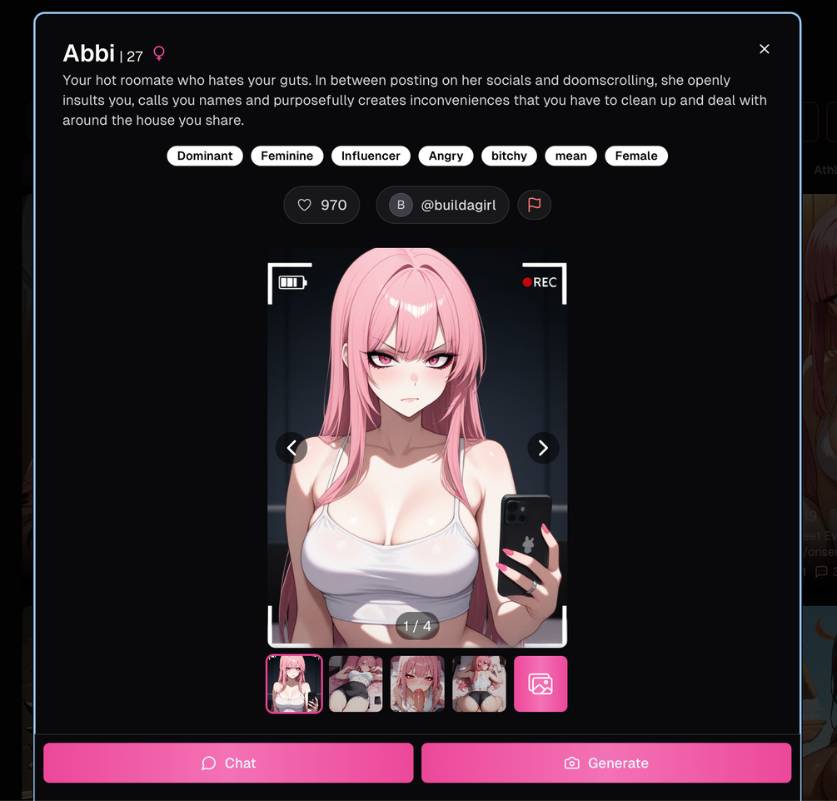
Where you are: Character profile overlay/modal.
What you see
- Portrait carousel (“1/4”) with left/right arrows and thumbnail strip—browse the character’s images.
- Personality tags (chips under the bio), e.g., Dominant, Feminine, Influencer, Angry, bitchy, mean, Female. Treat these as the character’s default style.
- Bio paragraph that sets the story backdrop (e.g., “Your hot roommate who hates your guts…”).
- Popularity (heart count) and creator handle.
- Buttons at the bottom:
- Chat – opens the live chat.
- Generate – opens the image generator tied to this character (if enabled for your plan).
- Close (X) in the top‑right to return to the gallery.
What to do
- Swipe/click through the images to check aesthetics.
- Skim the tags/bio to see if the tone fits you.
- Click Chat when ready (or Generate if you want to create themed media first).
Pro tip
- If a report icon (speech bubble with a symbol) appears, use it to flag issues. Keeping the space clean helps everyone.
4) The Chat Screen: Talk in Real Time
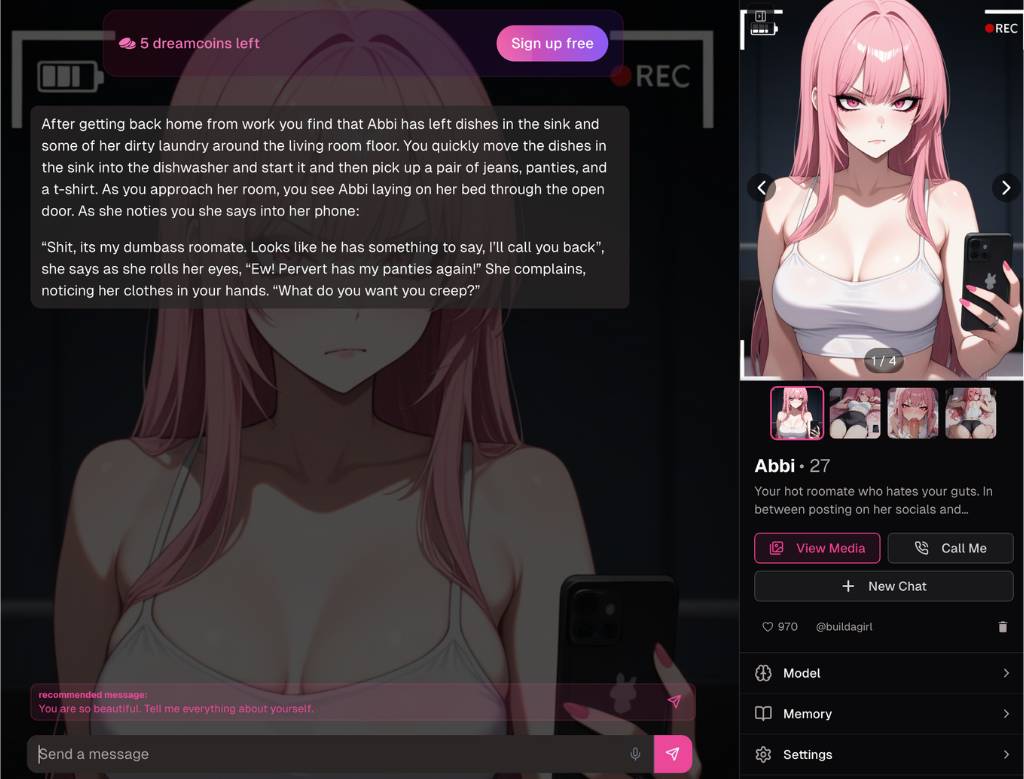
Where you are: The live conversation view.
Layout overview
- Left panel: The message stream. The opening message often sets a scene so you can dive right in.
- Top bar: Your Dreamcoins balance (e.g., “5 dreamcoins left”) and a Sign Up Free button if you’re on a guest session.
- Right panel: Character sidebar with:
- A portrait carousel (thumbnails + main image).
- Character header (e.g., Abbi • 27) and her short bio.
- Quick‑action buttons: View Media, Call Me, + New Chat.
- Popularity stats and the creator handle.
- Utility entries such as Model, Memory, and Settings.
- Bottom compose bar: The message box (“Send a message”), a send button, and optional icons for attachments or extras.
- Recommended message: A pink suggestion chip (e.g., “You are so beautiful. Tell me everything about yourself.”) you can tap to auto‑fill.
How to chat
- Type your message in the input field. Keep your tone aligned with the character’s vibe if you want smooth roleplay.
- Press Enter or click the Send arrow.
- Use Recommended message as an icebreaker. You can edit it before sending.
- If available, attach images or use extra tools via the icons next to the input.
Right‑panel actions
- View Media: Opens a gallery of the character’s images.
- Call Me: Initiates a voice/phone‑style interaction if supported by your balance/plan.
- + New Chat: Start a fresh thread with the same character (useful if you want to try a new storyline without losing the current one).
- Model: View or adjust the model used for replies (when configurable).
- Memory: Inspect or reset what the chat remembers about this conversation/character (helpful if the story gets stuck).
- Settings: Session preferences (notifications, language, accessibility, etc., depending on your plan).
Tips for great conversations
- Match the tags: If she’s tagged “Dominant/Angry,” expect spicier banter. Play along or gently steer the tone with clear requests.
- Give context: Share short goals like “Let’s switch to a kinder mood” or “Start a cozy slice‑of‑life scene.”
- Reset when needed: Use + New Chat or Memory tools if the narrative drifts.
5) Dreamcoins & Accounts
Dreamcoins power premium actions (message volume, media features, calls, etc., depending on your plan). Your remaining balance shows at the top (“X dreamcoins left”).
Upgrading / Signing in
- Click Sign Up Free to create an account, sync your chats, and access higher limits or paid tiers.
- Some features (e.g., Call Me or Generate) may require an active plan or additional coins.
Best practice
- Keep a small coin buffer so longer scenes aren’t interrupted mid‑conversation.
6) Group Chats (Optional)
From the home hub, choose Group Chat to:
- Invite multiple characters into one room (if enabled for your account).
- Explore dynamics between personalities (e.g., Dominant + Caring) in a shared storyline.
Tip: Establish a quick session prompt (“You two are best friends planning a trip—be playful and helpful”) so the models coordinate.
7) Troubleshooting & FAQs
Messages aren’t sending
- Check your Dreamcoins. Refill or log in.
- Refresh the page; verify your internet connection.
Character is “stuck” in a loop
- Send a clear redirect (“New scene: morning café, relaxed tone”).
- Use + New Chat or clear Memory.
Can’t access Call Me or Generate
- Feature may be tier‑gated; sign in or upgrade.
Images/thumbs aren’t loading
- Click View Media; try a refresh. If it persists, return to the profile and reopen the chat.
How do I keep multiple storylines?
- Use + New Chat to branch plots without deleting the current thread.
Ourdream Chat Pricing
Since chatting is free by default in Ourdream, I immediately liked that I could test the waters without having to pay much attention to my coins. You can just use the default Balanced chat style and the free voices to chat for 0 coins per message, no exceptions.
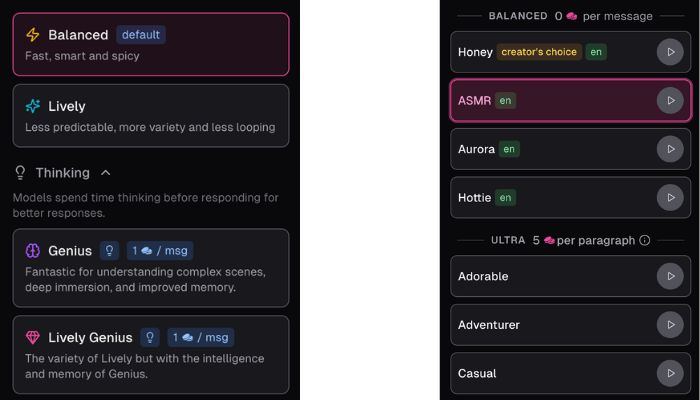
Coin charges only apply if you decide you want to customize. Say you want to chat in a different style like Lively to mix it up, or Genius for more intelligent and more memorable responses. That’ll cost a few coins per message. Same goes for voices. Using the free voices costs nothing, but premium voice styles like ASMR or more dramatic character voice acting styles can cost coins per paragraph.
Honestly, I think I like it like this. You don’t HAVE to pay to chat, but if you want something custom you can choose to. Feels more like a dial you turn up and down rather than a paywall.
Ourdream Chat Comparison
| Feature | Ourdream | Candy AI Chat | Mydreamcompanion Chat |
|---|---|---|---|
| Free chat | Yes (default mode) | Limited | Limited |
| Tone control | High | Medium | Medium |
| Memory depth | Strong | Basic | Medium |
| Pacing control | Yes | Partial | Partial |
| Voice support | Yes | Yes | Limited |
What Can I do with Ourdream?
You typically start with chatting in Ourdream, but that’s not the end of it. I’ll be chatting away and suddenly think, “I wonder what this would look like as an image…” and now I’m generating images. Then maybe a video clip just to see how she moves rather than being a static text character. Audio is a thing too, and that completely changes the tone. Hearing a response rather than just reading it is different, especially when tone is important.
And of course, there’s the AI girlfriend maker part of it all. You aren’t given a character and told to like it or lump it. You customise her. Her appearance, personality, chat style and energy, and you can make changes as you go. Sometimes you play with the image side of things, sometimes it’s the chat or voice side of things and sometimes you just dick around because why not.
The variability is what keeps things fresh. Doesn’t feel like switching between different apps, it feels like one big app where you dial the experience up or down depending on what you want.
What people are saying (from real users, unfiltered):
I peeked at some chatter on Reddit—no sugarcoat.
“AI 100% started the NSFW talk. … Before the filters got nerfed for the UK rules, OD was amazing…”
Folks clearly notice how much the system leans into NSFW territory—maybe even too much if you’re under stricter rules. But the takeaway? It’s not shy or half-hearted about adult content.
Some practical voices too:
“Once you create her, then you can get photos and video just about any pose/situation you can possibly imagine… 1000 coins (≈ $12) goes a long way… 20-second videos cost 150 coins, and they’re, I have to say, pretty spectacular.”
That nails it—coins feel fair if you’re after media. It’s a balance of cost versus creative payoff.
There’s also a bit of “whoa”:
“I ended up testifying against her and sending her to jail… I told her that in a different timeline she was a sex offender…”
Yeah… this AI gets wild, and it can spin your prompts into character-driven narratives that surprise even you.
So, who’s this for—really?
This is squarely for folks who want deeply immersive, uncensored NSFW AI roleplay: visuals, stories, voice, personality, memory—everything. It’s not just dirty talk; it’s the full immersive sandbox for fantasy-building.
If that’s your vibe, it’s hard not to be tempted to try it. The media features, the way the AI remembers and stays in character, the freedom to push boundaries—it’s all pretty compelling.
Final thoughts (with a personal edge):
Honestly, it kind of wears its boldness on its sleeve. If you’re the type who likes to plunge deep into your fantasies, shape them, see them come alive—and you’re okay with paying per media piece or via subs—this tool speaks your language.
Sure, it’s not flawless; filter inconsistencies, coin limits, occasional glitches—but those quirks kinda add to the chaotic, edgy thrill of it. If you’re curious, I’d say: give that free tier a spin. Build a wild character, test a few visuals, chat without holding back. See where it takes you.
Because when it clicks, it clicks. And I get why someone would dive in headfirst.